
- Home ›
- Android入門 ›
- MapViewクラス ›
- HERE
渋滞情報の表示切替
広告
地図に渋滞情報を追加で表示するかどうかの設定方法を確認します。(なお渋滞情報はアメリカの地図上でしか提供されていません)。「MapView」クラスで用意されている「toggleTraffic」メソッドを使います。
toggleTraffic
public void toggleTraffic()
Toggles whether traffic is shown on the map.
「toggleTraffic」メソッドを実行すると、渋滞情報が表示されていない場合は表示し、渋滞情報が表示されている時は表示をしないようにします。
渋滞情報が表示されているかどうかを確認するメソッドも用意されています。「MapView」クラスで用意されている「isTraffic」メソッドを使います。
isTraffic
public boolean isTraffic()
Returns:
  true if the map is drawing traffic where available; false otherwise.
戻り値として「true」が帰ってきた場合には渋滞情報が表示されており、「false」の場合は表示されていません。
具体的には次のように記述します。
@Override public void onCreate(Bundle icicle) {
    super.onCreate(icicle);

    MapView map = new MapView(this);
    map.toggleTraffic();
}
サンプルプログラム
それでは実際に試してみます。プロジェクトを作成しソースコードを次のように変更しました。
package jp.javadrive.android;

import com.google.android.maps.MapActivity;
import android.os.Bundle;
import com.google.android.maps.MapView;
import android.view.View;
import android.view.ViewGroup;
import android.widget.LinearLayout;
import android.widget.Button;
import android.graphics.Color;
import android.view.View.OnClickListener;

public class Test04_01 extends MapActivity
    implements OnClickListener{

    private final int FP = ViewGroup.LayoutParams.FILL_PARENT;
    private final int WC = ViewGroup.LayoutParams.WRAP_CONTENT;

    private MapView map;
    private Button buttonSatellite;
    private Button buttonTraffic;

    @Override public void onCreate(Bundle icicle) {
        super.onCreate(icicle);

        LinearLayout linearLayout = new LinearLayout(this);
        linearLayout.setOrientation(LinearLayout.VERTICAL);
        setContentView(linearLayout);


        LinearLayout btnLinearLayout = new LinearLayout(this);
        btnLinearLayout.setOrientation(LinearLayout.HORIZONTAL);
        btnLinearLayout.setBackgroundColor(Color.BLACK);

        buttonSatellite = new Button(this);
        buttonSatellite.setText("Satellite Off");
        buttonSatellite.setOnClickListener(this);

        buttonTraffic = new Button(this);
        buttonTraffic.setText("Traffic Off");
        buttonTraffic.setOnClickListener(this);

        btnLinearLayout.addView(buttonSatellite, createParam(WC, WC));
        btnLinearLayout.addView(buttonTraffic, createParam(WC, WC));


        map = new MapView(this);

        linearLayout.addView(btnLinearLayout, createParam(FP, WC));
        linearLayout.addView(map, createParam(WC, WC));
    }

    private LinearLayout.LayoutParams createParam(int w, int h){
        return new LinearLayout.LayoutParams(w, h);
    }

    public void onClick(View v) {
        if (v == buttonSatellite){
            map.toggleSatellite();
            if (map.isSatellite()){
                buttonSatellite.setText("Satellite On");
            }else{
                buttonSatellite.setText("Satellite Off");
            }
        }else if (v == buttonTraffic){
            map.toggleTraffic();
            if (map.isTraffic()){
                buttonTraffic.setText("Traffic On");
            }else{
                buttonTraffic.setText("Traffic Off");
            }
        }
    }
}
ビルド後にエミュレーター上で実行します。少しズームインしておいて下さい。
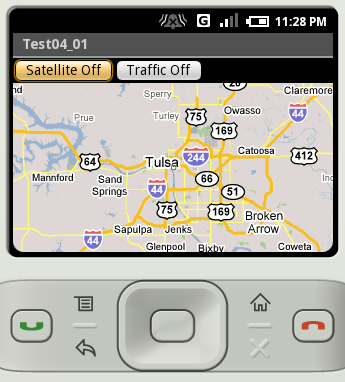
デフォルトでは渋滞情報は表示されていません。では「Traffic Off」と書かれたボタンをクリックして下さい。
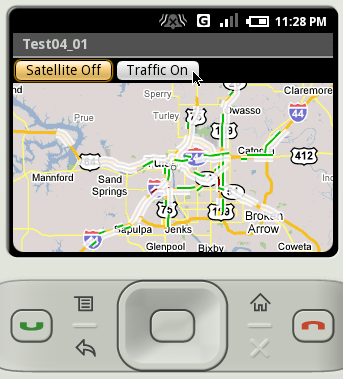
渋滞情報が追加で表示されます。では「Traffic On」と書かれたボタンをクリックして下さい。
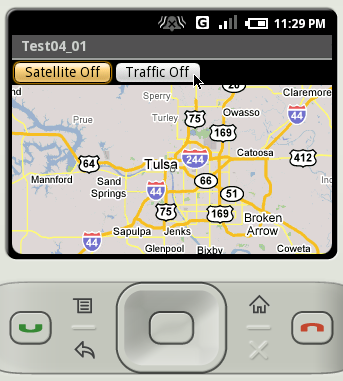
渋滞情報が非表示となります。
( Written by Tatsuo Ikura )
 JavaDrive