
- Home ›
- Android入門 ›
- GridViewクラス ›
- HERE
垂直方向の項目間の間隔
広告
グリッド内に配置された項目間の垂直方向の間隔を設定します。「GridView」クラスで用意されている「setVerticalSpacing」メソッドを使います。
setVerticalSpacing
public void setVerticalSpacing(int verticalSpacing)
Set the amount of vertical (y) spacing to place between each item in
the grid.

Related XML Attributes:
  android:verticalSpacing
Parameters:
  verticalSpacing  The amount of vertical space between items, in pixels.
1番目の引数に項目間の垂直方向の間隔をピクセル単位で指定します。
具体的には次のように記述します。
private final int FP = ViewGroup.LayoutParams.FILL_PARENT;
private final int WC = ViewGroup.LayoutParams.WRAP_CONTENT;
private String[] data = {"Apple", "Lemon", "Orange", "Strawberry"};

@Override protected void onCreate(Bundle icicle) {
    super.onCreate(icicle);

    ArrayAdapter<String> arrayAdapter
        = new ArrayAdapter<String>(this, R.layout.rowdata, data);

    GridView grid  = new GridView(this);
    grid.setAdapter(arrayAdapter);
    grid.setVerticalSpacing(10);
    setContentView(grid, new LayoutParams(WC, FP));
}
サンプルプログラム
それでは実際に試してみます。プロジェクトを作成しソースコードを次のように変更しました。
package jp.javadrive.android;

import android.app.Activity;
import android.os.Bundle;
import android.widget.LinearLayout;
import android.view.ViewGroup;
import android.widget.GridView;
import android.widget.ArrayAdapter;
import android.graphics.Color;

public class Test06_01 extends Activity
{
    private final int FP = ViewGroup.LayoutParams.FILL_PARENT;
    private final int WC = ViewGroup.LayoutParams.WRAP_CONTENT;

    private String[] data = {"Tokyo", "Osaka", "Aichi", "Hokkaido",
                             "Fukuoka", "Chiba", "Kyoto", "Nara"};

    @Override protected void onCreate(Bundle icicle) {
        super.onCreate(icicle);

        LinearLayout linearLayout = new LinearLayout(this);
        linearLayout.setOrientation(LinearLayout.HORIZONTAL);
        setContentView(linearLayout);

        GridView grid  = new GridView(this);
        grid.setNumColumns(3);
        grid.setHorizontalSpacing(20);
        grid.setVerticalSpacing(30);
        grid.setBackgroundColor(Color.LTGRAY);
        linearLayout.addView(grid, createParam(250, FP));

        ArrayAdapter<String> arrayAdapter
            = new ArrayAdapter<String>(this, R.layout.rowdata, data);

        grid.setAdapter(arrayAdapter);
    }

    private LinearLayout.LayoutParams createParam(int w, int h){
        return new LinearLayout.LayoutParams(w, h);
    }
}
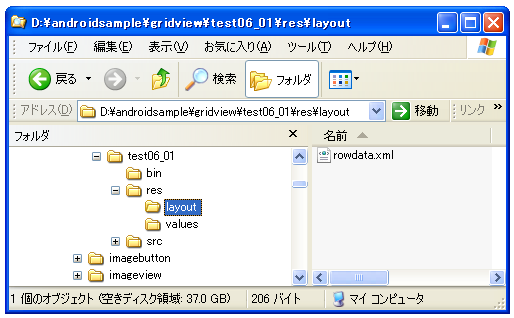
またレイアウトXMLファイルをリソースとしてプロジェクト内の「res/layout」ディレクトリに配置しました。ファイル名は「rowdata.xml」です。ファイルには次のように記述します。
<?xml version="1.0" encoding="utf-8"?>
<TextView
    xmlns:android="http://schemas.android.com/apk/res/android"
    android:layout_width="wrap_content"
    android:layout_height="wrap_content"
/>
ビルド後にエミュレーター上で実行します。
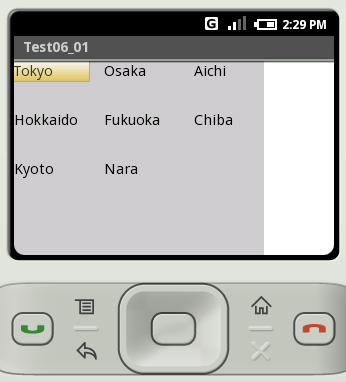
グリッドに表示されている各項目の垂直方向の間隔が設定されていることが確認できます。
( Written by Tatsuo Ikura )
 JavaDrive